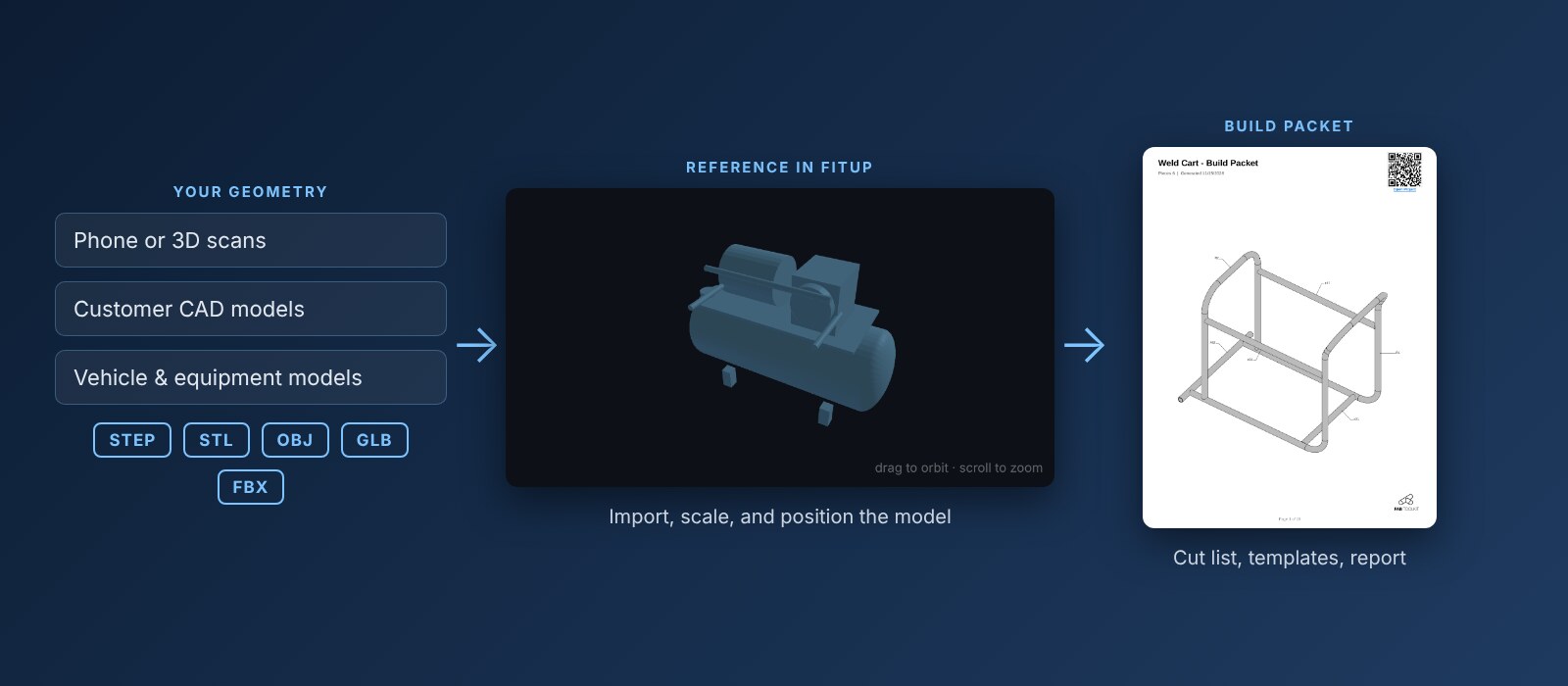
FitUp PRO can import existing 3D geometry and use it as a reference while designing your fabrication assembly.
That geometry could come from almost anywhere:
- 3D scans from apps like Polycam
- CAD models from existing designs
- STEP/STP models
- STL models
- OBJ models
- GLB models
- FBX models
- 3D models of vehicles, equipment, structures, or components
The important thing isn't where the model came from. It's what you can do with it once it's in FitUp.
Import it. Reference it. Build around it.
From a Truck Scan to a Custom Headache Rack
I wanted to try the new feature on something that would be difficult to design around using measurements alone.
So I scanned my truck using Polycam.
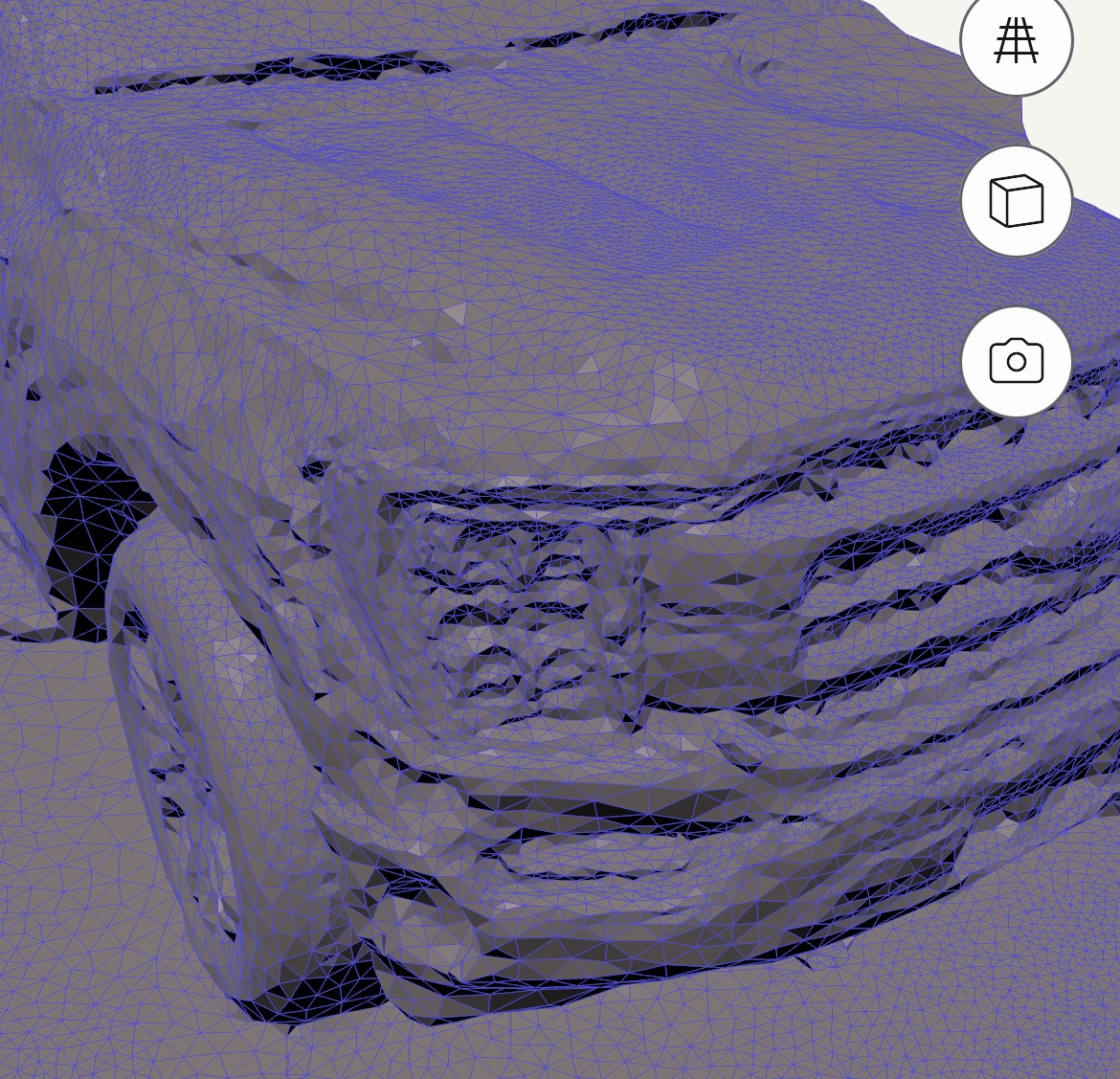
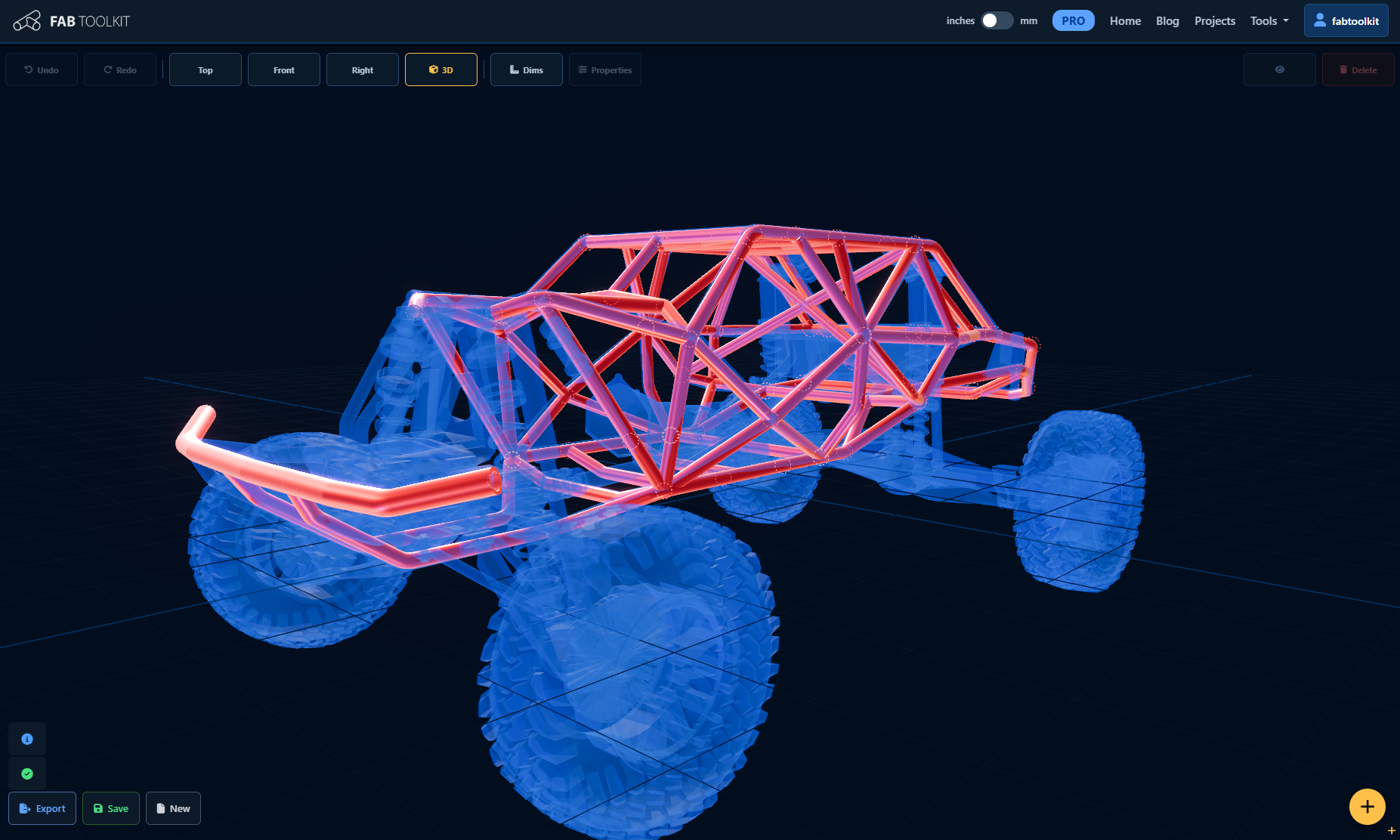
I imported the resulting 3D model into FitUp and used the truck as reference geometry. Instead of recreating the truck in CAD, I could immediately start laying out tubes around its actual shape.
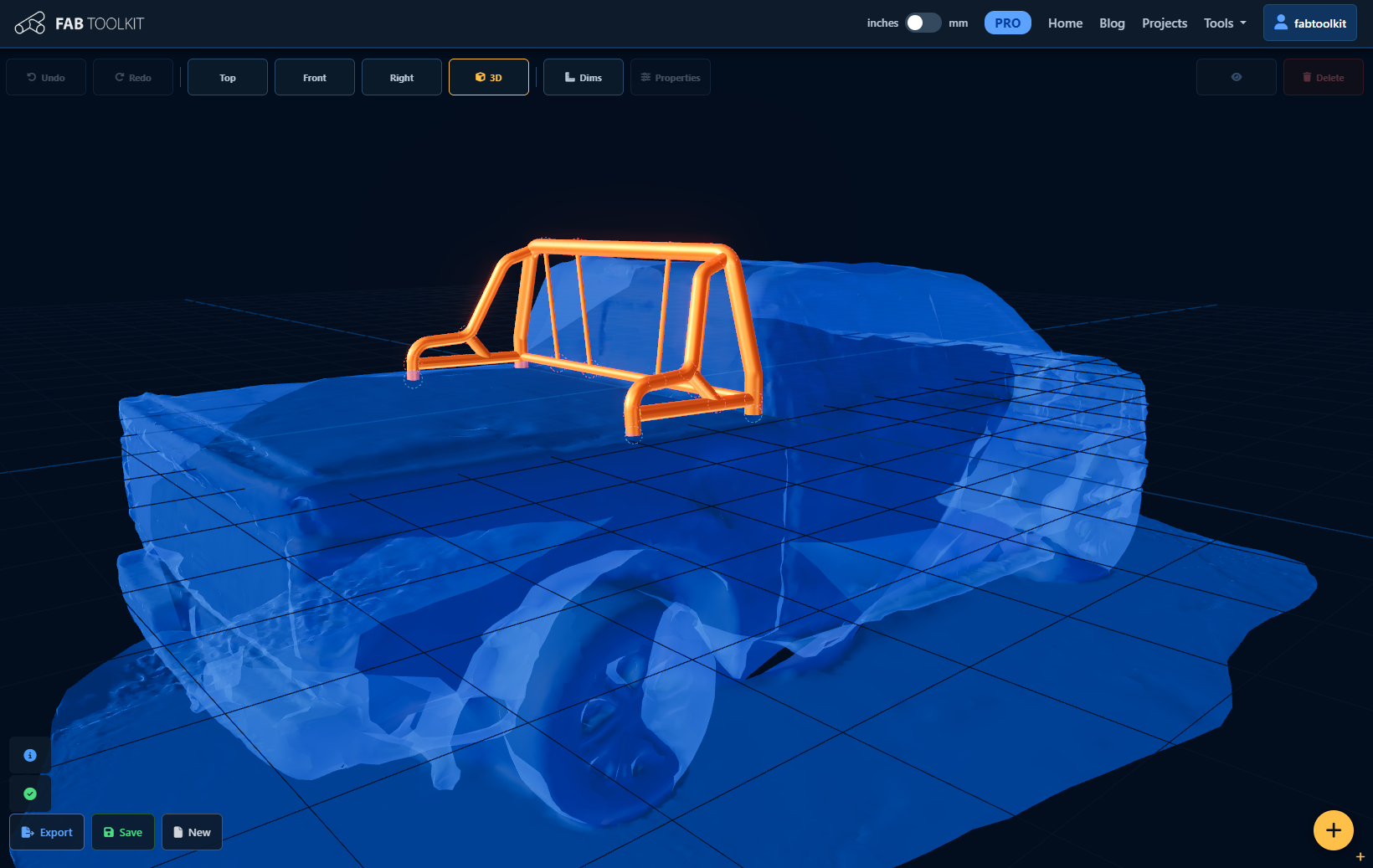
I built the headache rack directly around the truck.
That's the idea behind Reference Geometry Import: FitUp doesn't need to know what the object is. It just needs the geometry.
Your Reference Model Doesn't Have to Be a Scan
3D scanning is a great way to capture something that already exists in the real world. But sometimes the model already exists.
Maybe a customer sends you a CAD model. Maybe you're building around a component from another manufacturer. Maybe you already have a model of the vehicle, machine, or equipment you're working with. Maybe you're modifying an existing design.
In those cases, you can bring the existing 3D model directly into FitUp.
That opens up a much larger range of fabrication workflows.
No need to remodel the reference object just to start designing the tube structure around it.
How to Import a Model
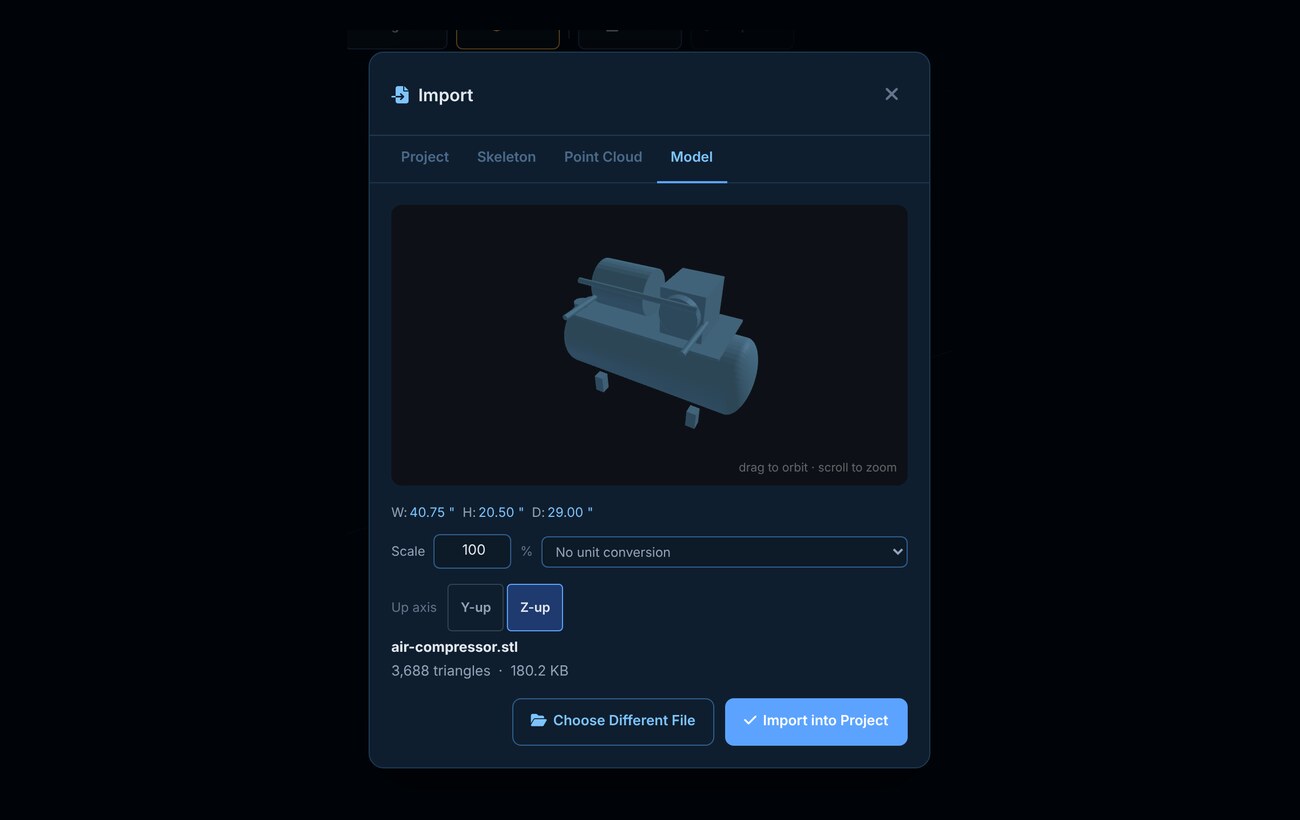
- Open FitUp and click the Import button.
- On the Model tab, click to choose a file or drag it onto the drop zone. FitUp accepts STL, OBJ, GLB, FBX, and STEP/STP files up to 500,000 triangles.
- Check the preview and the width, height, and depth readout. If the size is wrong, pick a unit conversion (for example, from meters → inches) or adjust the scale percentage until the dimensions match the real object.
- Choose Z-up or Y-up so the model sits upright. FitUp is Z-up; many OBJ, GLB, and FBX files are Y-up.
- Click Import into Project.
Once the model is in your scene, select it to move, rotate, scale, or flip it into position. You can also change its color or make it transparent so your tubes stay visible where they pass close to or through the reference. The reference model is saved with your project, so it's there the next time you open it.
Tip: Phone scans are often much denser than they need to be. If a scan is over the 500,000-triangle limit, export it at a lower detail level from your scanning app or reduce it in a program like Blender before importing. A reference model only needs enough detail to show the surfaces you're building around.
What Can You Build Around?
Once you start thinking about reference geometry this way, the possibilities get pretty broad.
Vehicles
Import a scan or CAD model and design:
- Headache racks
- Roll cages
- Tube bumpers
- Bed racks
- Rock sliders
- Roof racks
- Spare tire carriers
- Equipment mounts
Buildings and Structures
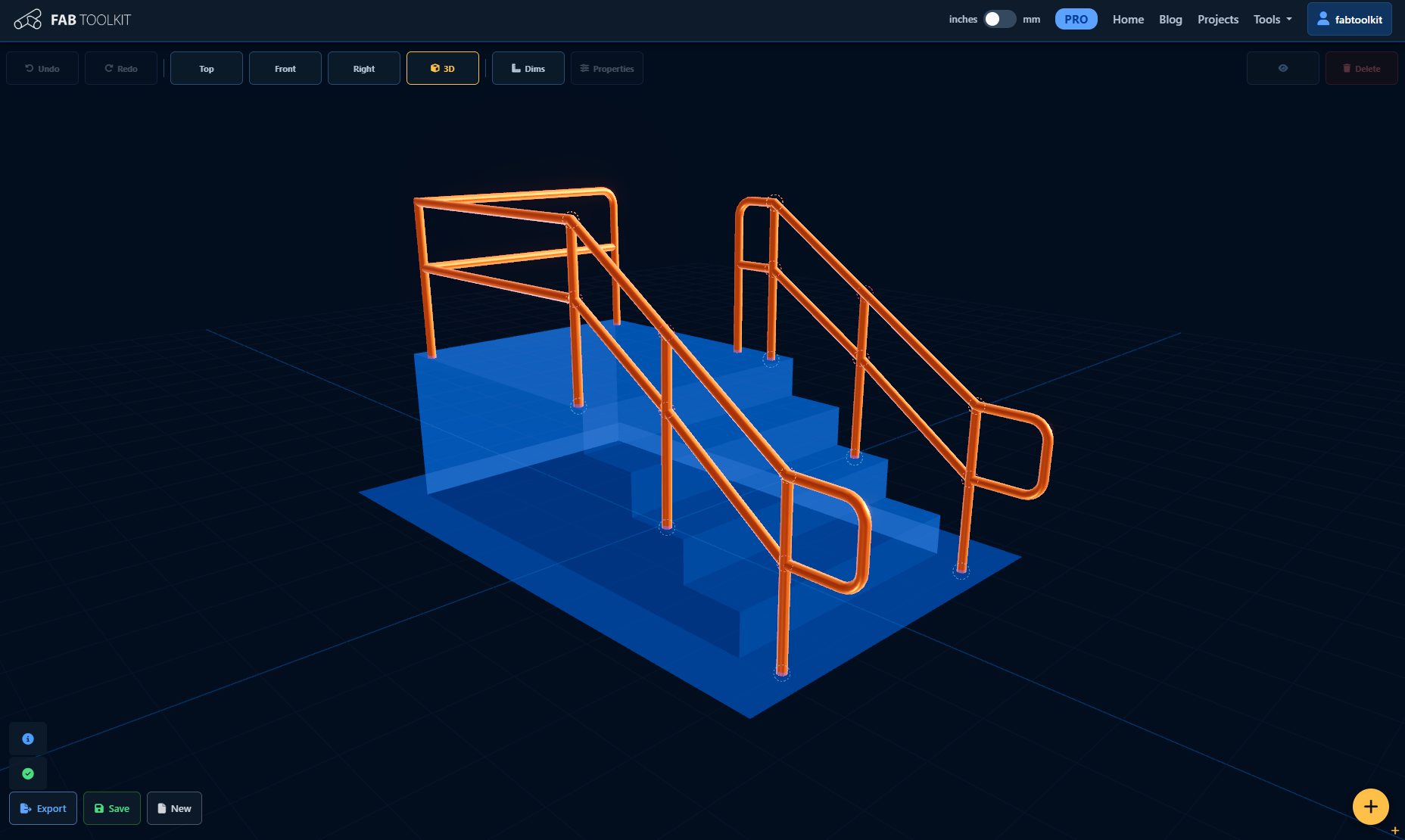
Import a scan or existing model of stairs, porches, decks, fences, gates, or existing building frames — then design the new fabrication around the geometry that's already there.
Equipment
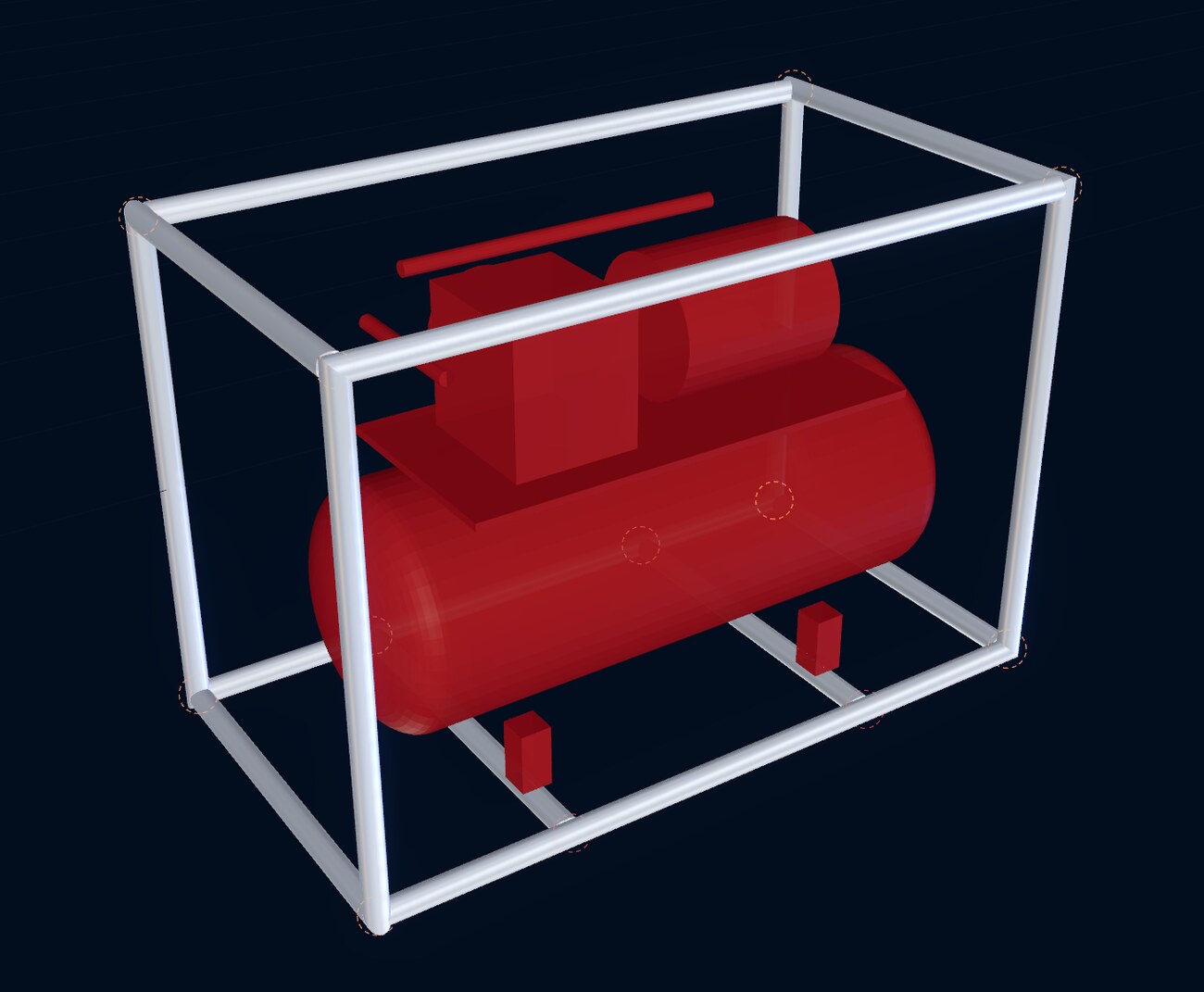
Import the model of a welder, generator, compressor, motor, pump, or machine — then design the cart, stand, frame, enclosure, or mounting structure around it.
Existing CAD Designs
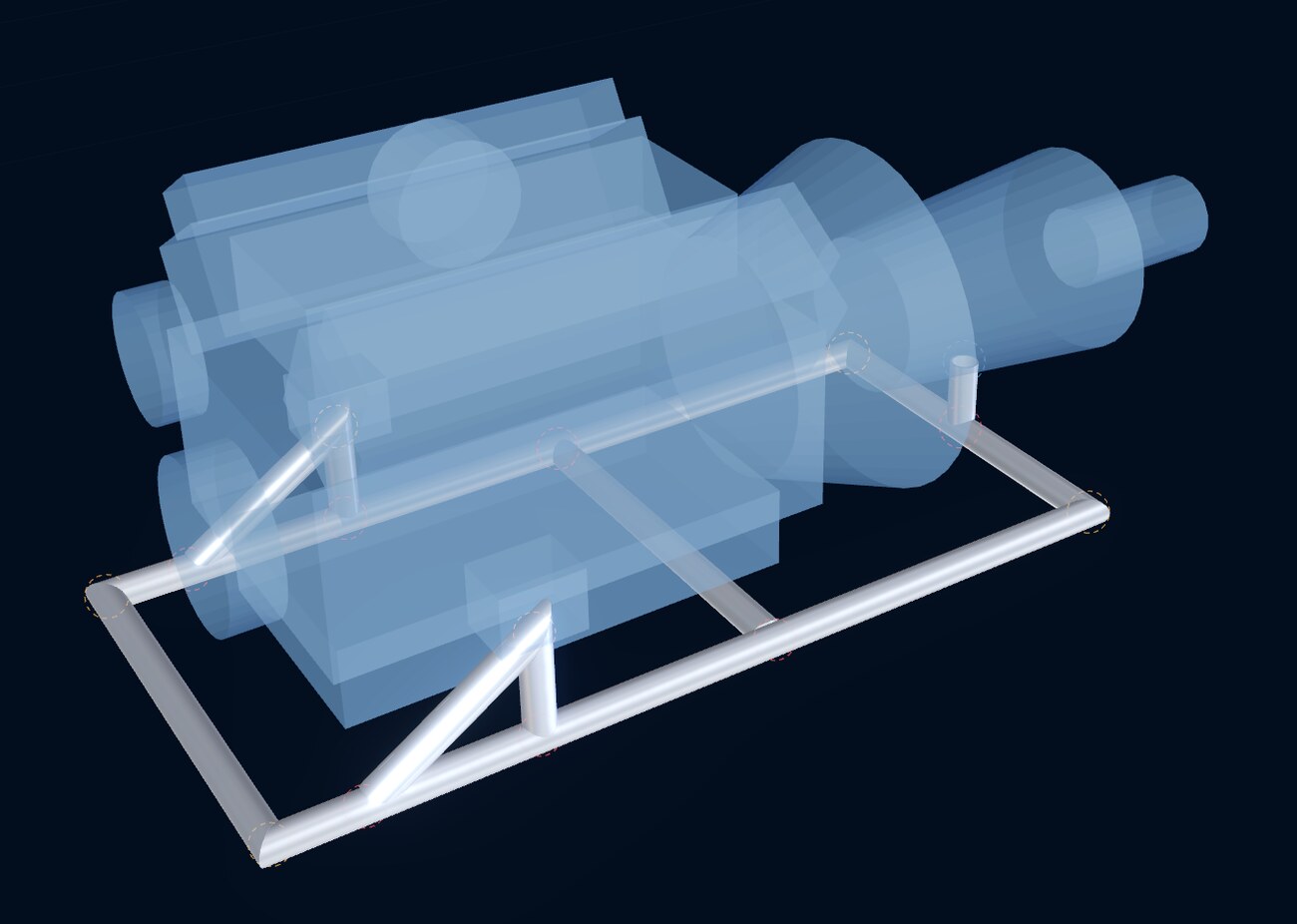
Have an existing assembly or component that needs a fabricated structure around it? Import the model and use it as your reference.
From Reference Geometry to Fabrication Package
The reference model isn't the final product. It's the starting point.
Once you've laid out your tube assembly in FitUp, you can turn that design into a complete fabrication package:
- Tube cut lists
- Joint information
- Notch templates
- Miter templates
- Estimated weight and material cost
- Build documentation
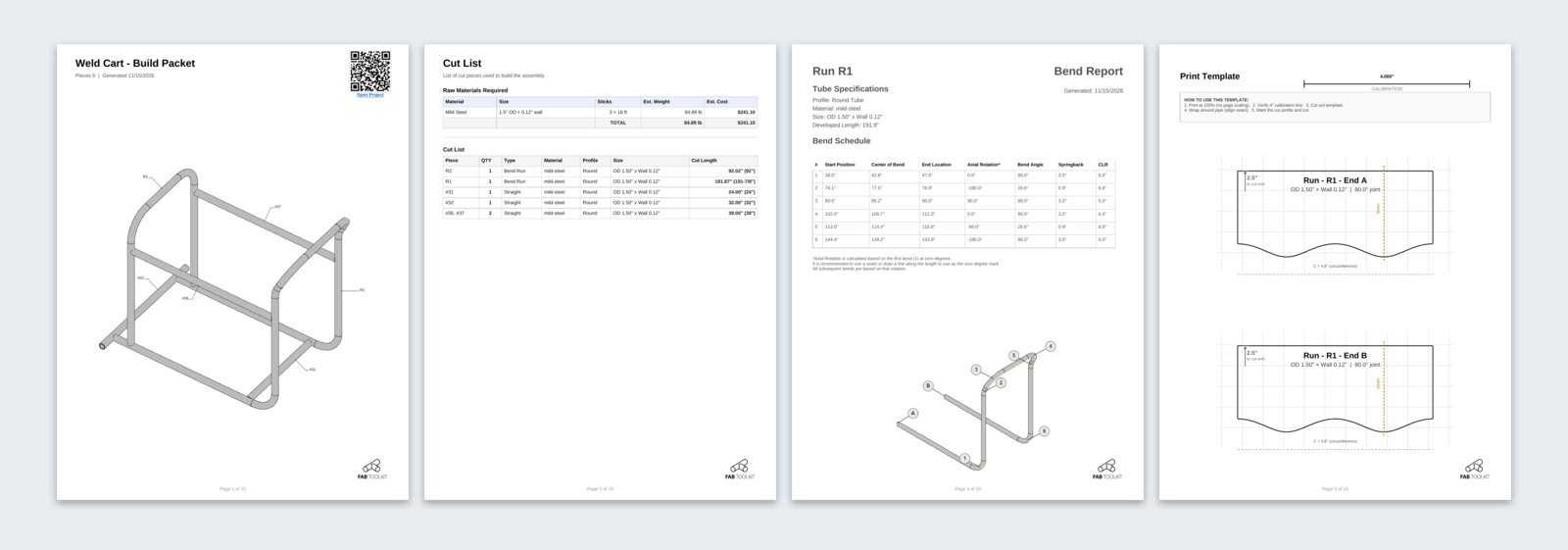
Whether the original geometry came from a scanner, a CAD system, a customer, or somewhere else, the goal is the same: build something that fits.
If You Have the Geometry, You Can Build Around It
That's what makes Reference Geometry Import so useful. You don't have to start with a blank canvas. You don't have to model every object from scratch.
You can start with the geometry that already exists and use FitUp to build the fabrication structure around it.
Scan it. Import it. Build around it.
Reference Geometry Import is a FabToolkit PRO feature. FitUp itself is free to use for laying out assemblies. PRO adds model import, the full build packet, DXF and G-code export, and unlimited saved projects.
Try Reference Geometry Import in FitUp PRO
Import a 3D model in STEP, STL, OBJ, GLB, or FBX format, from a scan or CAD, and design your fabrication assembly around it.
Open FitUp