FabToolkit Pro unlocks advanced workflow features and professional-grade export formats built for shops that need more than a printable PDF. This guide covers every Pro feature — what it does, why it matters, and how to put it to work.
Free vs. Pro: What Changes
The free pipe coping calculator handles all the core math — enter your pipe sizes and intersection angle and you get a complete wrap-around template in seconds. Pro layers on features and export formats designed for more complex jobs and production workflows:
- Up to 6 intersecting pipes per joint (free is limited to 3)
- Custom pipe naming on templates and exports
- Direct CNC output (G-Code)
- Plasma/laser-ready flat patterns (DXF)
- 3D printable marking fixtures (STL sleeves)
- Full 3D geometry for CAD verification (OBJ/STL model export)
- AI-generated weld procedure documents (WPS)
All export formats are generated from the same geometry the free tool already computes — they just produce machine-consumable output and richer labeling instead of a basic printable PDF.
Up to 6 Intersecting Pipes
The free tool supports joints with up to 3 intersecting pipes — enough for the vast majority of single-node connections. Pro raises that limit to 6 pipes per joint, which covers the multi-tube nodes found in complex chassis work, space frames, and structural fabrication where three or more tubes converge at a single point.
Each pipe in the joint gets its own cope profile, computed simultaneously with the others so the intersection geometry stays consistent across all members. All the standard outputs — printable PDF, DXF, G-Code, STL — are available for every pipe in the joint.
Custom Pipe Naming
Pro accounts can assign a custom name to each pipe before exporting. The name appears on the printed template, on DXF layers, and in the file name of each export — so when you're managing a multi-tube chassis with a dozen different copes, every template is immediately identifiable without having to decode pipe dimensions from the file name.
Typical uses:
- Part numbers from a cut list (A-pillar lower, RF harness bar)
- Position labels for assembly (node 3 — upper left)
- Material callouts when a joint mixes tube sizes or specs
DXF Export — Flat Patterns for Plasma & Laser

DXF Export
Exports the unrolled cope profile as a 2D DXF file ready to load into any plasma table, laser cutter, or CAD program.
- AutoCAD-compatible .dxf format
- Flattened template with true dimensions
- Ready for nesting and toolpath generation
- Eliminates re-drawing in CAM software
If you run a plasma table or laser cutter, the DXF export removes the middle step of redrawing the cope profile in your CAM software. Load the file, assign your cut layer, add lead-ins, and cut. The geometry comes out of FabToolkit already flattened and dimensionally correct. The format opens in SheetCam, Fusion 360, LibreCAD, Inkscape, and virtually every other tool in the chain without conversion.
G-Code Export — Direct CNC Output
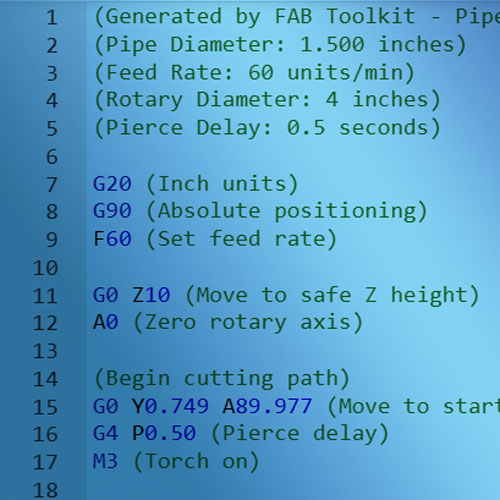
G-Code Export
Generates machine-ready G-Code for CNC pipe cutters or plasma tables with a rotary fourth axis.
- Configurable feed rates and cut speeds
- Rotary (4th axis / A-axis) support
- Pierce delay and torch height control
- Works with standard Mach3/LinuxCNC dialects
The G-Code exporter takes the cope profile and converts it directly into the move commands your CNC controller understands. It's designed for setups where the pipe rotates on a rotary axis (A-axis) while a plasma torch or cutting head moves along the pipe length.
Seeing It in Action
The video below shows a real cut produced from a FabToolkit G-Code export on a rotary axis setup. Watch how the arc of the cope profile is broken into small rotary/linear interpolated moves and how the pierce delay keeps the torch from blowing out the start of the cut:
Configuration Options
Before exporting you can dial in several parameters to match your machine:
- Feed rate — cutting speed in mm/min or in/min
- Pierce delay — dwell time at the start of each arc to let the plasma fully pierce before travel begins
- Axis mapping — swap X/Y assignments to match your controller's convention
- Units — metric or imperial output
3D Printable Template Sleeve (STL)
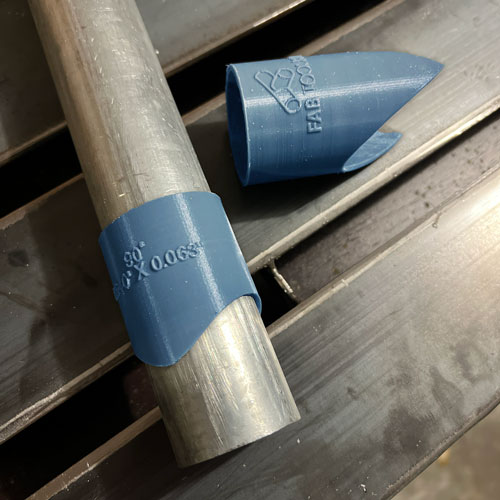
3D Printable Template
Generates a hollow sleeve that slides over your pipe with the cope profile embossed on the outside edge — print it once, mark dozens of pipes.
- Exact fit for standard pipe ODs
- Pipe size and angle labels printed in relief
- Rigid enough for scribe lines, flexible enough to slide off
- Reusable for repeat cuts at the same geometry
Paper templates are fast and cheap for one-off cuts, but if you're running the same joint repeatedly — think production roll cages or tube chassis — a printed sleeve pays for itself after the second part. Slide it on, scribe the line, slide it off. No re-printing, no re-taping.
The STL is sized to the nominal OD of the pipe you entered. Print at 100% scale in PLA or PETG, no supports required in most orientations. Wall thickness is set to be stiff enough to resist the scribe without flexing.
OBJ / STL Model Export — Full 3D Geometry
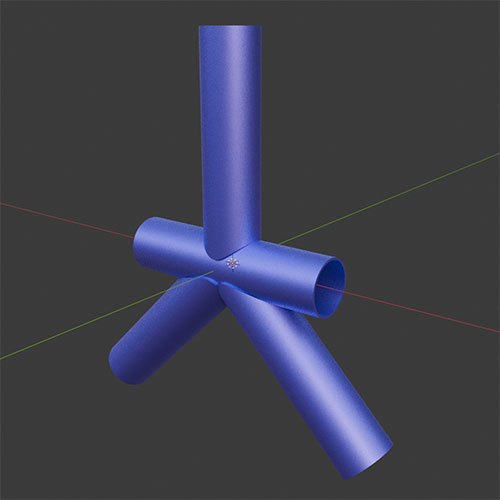
OBJ / STL Export
Exports the complete 3D geometry of the coped joint — both pipes — as a mesh file for CAD verification or documentation.
- Industry-standard OBJ and STL formats
- Import directly into Fusion 360, Blender, or SolidWorks
- Verify clearances and geometry before cutting
- Attach to job packets as documentation
Sometimes you need more than a flat template. The OBJ/STL export gives you the full solid model of the joint so you can drop it into your CAD assembly, check for interference with neighboring tubes, or include a rendered image in a customer quote.
It's also useful as a sanity check before you commit stock to a cut. Load the model, spin it around in Fusion or even a free viewer like MeshLab, and confirm that the cope geometry is exactly what you expect before any chips fly.
AI-Generated WPS Documents
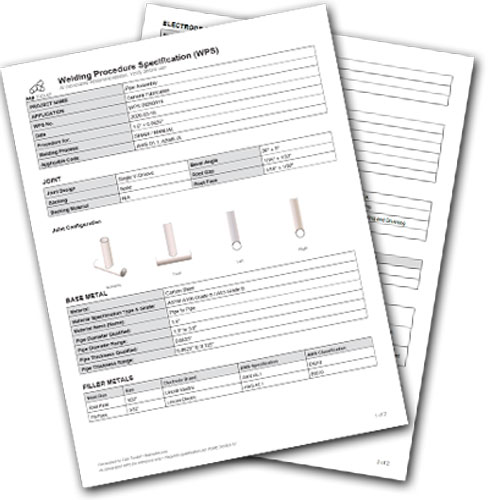
WPS Generation
Uses AI to generate a Welding Procedure Specification tailored to the material, wall thickness, and joint geometry you specified.
- Material-specific preheat recommendations
- Joint preparation and fit-up details
- Suggested filler metal and shielding gas
- Voltage, amperage, and travel speed ranges
Every professional weld starts with a procedure. The WPS generator reads the joint parameters you've already entered — material, wall thickness, pipe diameter, intersection angle — and uses that context to produce a starting-point WPS document you can refine and stamp for your job file.
A few important caveats: the output is AI-generated and is not a certified or code-qualified procedure. For structural, pressure-bearing, or code-inspected work, have the document reviewed and qualified by a Certified Welding Inspector (CWI). For shop fabrication and custom work it makes an excellent starting point and a time-saver when generating internal job documentation.
How to Access Pro Features
- Sign in to your Pro account at fabtoolkit.com/auth/login.html.
- Open the Pipe Coping Template Generator.
- Configure your joint — enter pipe sizes, angle, and material as normal.
- Open the Export panel — the Pro formats (DXF, G-Code, STL, OBJ, WPS) appear alongside the standard PDF export.
- Configure export options if prompted (feed rates for G-Code, for example), then download.
Common Questions
Is the 6-pipe limit per joint or per project?
Per joint. Each joint you configure can have up to 6 intersecting pipes. There's no limit on the number of joints you can work on in a session.
Which tools support Pro exports?
The Pipe Coping Template Generator has the full Pro export suite. Advanced exports are being rolled out to the Miter Joint Generator and other tools over time. Use the in-app feedback button if there's a specific tool + export combination you need.
Can I use G-Code or DXF output for commercial jobs?
Yes. All files produced by FabToolkit — including Pro exports — can be used in commercial fabrication projects with no restrictions.
My CNC controller doesn't like the G-Code. What do I do?
G-Code dialects vary between controllers (Mach3, GRBL, LinuxCNC, Fanuc, etc.). First dry-run the file (torch off, motion only) to see where it errors. Then drop your controller make/model in the feedback form and we'll work through compatibility.
Upgrade to Pro
Unlock DXF, G-Code, 3D printable templates, OBJ/STL export, and AI-generated WPS documents for your fabrication workflow.
Get StartedRelated reading: