If you've been using FabToolkit for any serious fabrication work, you know the routine: open the tool, key in your pipe OD, your wall thickness, your intersection angle — and then close the tab and lose it all. Next session, start from scratch.
That ends now. FabToolkit accounts can save projects to your account and reload them with a single click.
What Is a Saved Project?
A saved project is a named snapshot of your entire tool state — every input, every setting, every value — stored to your account. When you reopen it, the tool loads exactly where you left off. Nothing to re-enter.
Each project is tied to a specific tool, so your pipe coping setups stay separate from your tube bend setups, your miter joint setups, your hole pattern layouts, and so on.
Named and organized
Give each project a meaningful name — "2in SCH40 45deg Branch", "Gate Top Rail", "Handrail Run 3", "Chassis Brace Set B" — whatever makes sense for your job.
Resume anywhere
Projects are stored in your account, not your browser. Log in from your phone in the shop, your tablet at the bench, or your laptop at the desk — your setups follow you.
Rename and delete anytime
Click a project name to rename it inline. Delete projects you no longer need. Your list stays clean.
How to Save a Project
-
Sign in or create a free account. Projects are account-based, so you'll need to be logged in. Free accounts can save up to 3 projects at a time.
-
Open any FabToolkit tool — Pipe Coping Template Generator, Tube Bend Calculator, Miter Joint Template Generator, or Hole Pattern Generator.
-
Dial in your settings. Enter your dimensions and configure everything exactly how you need it.
-
Click "Save Project" in the toolbar. Give it a name and hit Save. That's it.
-
Reload it anytime from My Projects — click Open and the tool restores your exact setup instantly.
Free vs. Pro
Saved projects are available to all registered users — free and Pro alike.
| Feature | Free | Pro |
|---|---|---|
| Saved projects | Up to 3 | Unlimited |
| Rename & delete | ✓ | ✓ |
| Resume on any device | ✓ | ✓ |
If you're running multiple builds at once or maintaining a library of recurring setups, a Pro account removes the 3-project cap entirely. You can also save projects directly from the tool after exporting a DXF or G-Code file — so your export settings and your project stay in sync.
Where to Find Your Projects
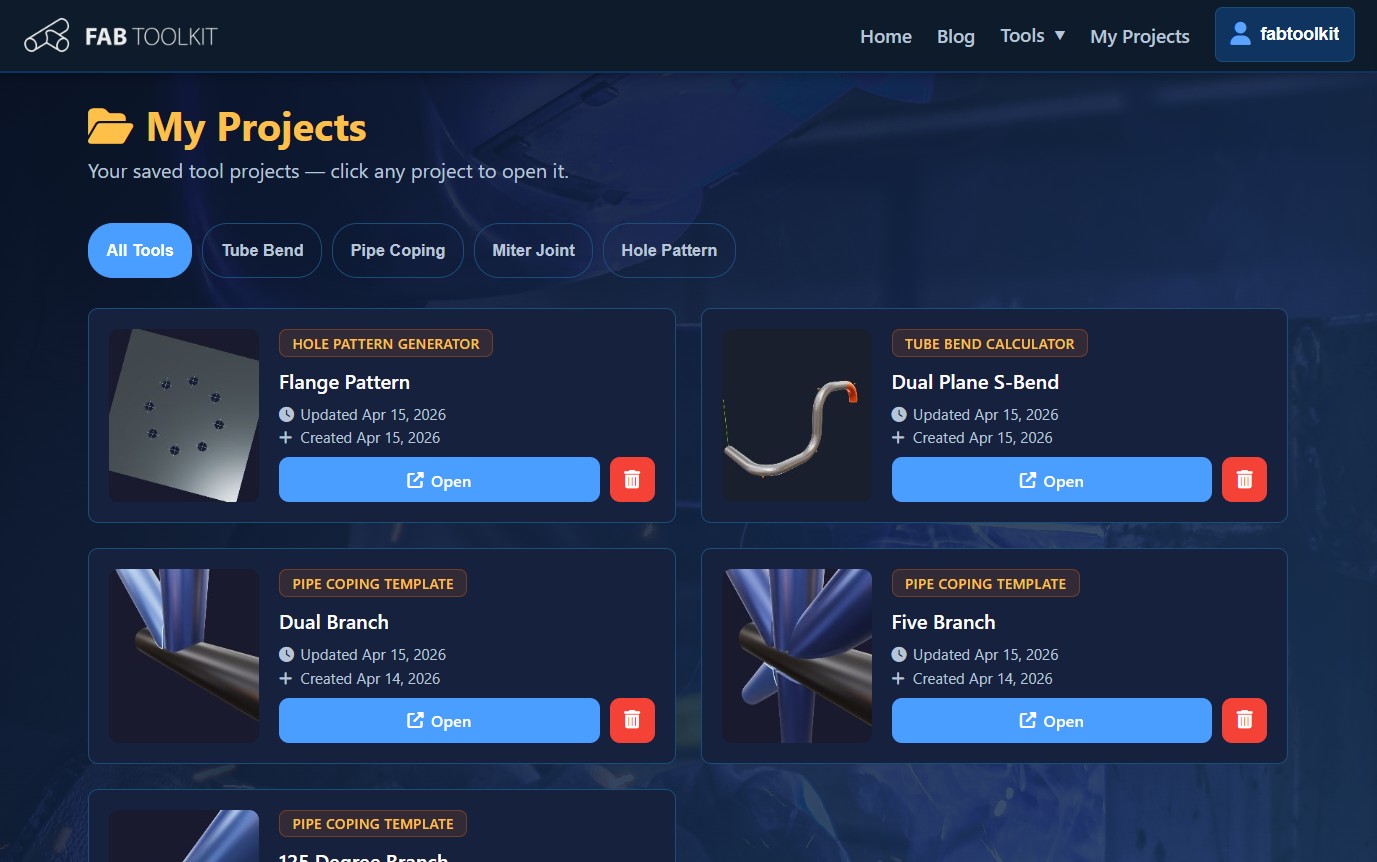
All your saved projects live on the My Projects page, accessible from the account menu after signing in. Projects are grouped by tool and sorted by when you last updated them. You can filter by tool type using the chips at the top of the page.
If you've got a project open and you want to save a variation without overwriting the original, use Save as New in the save dialog. Both versions are kept independently.
Why This Matters for Real Shop Work
Most fabricators aren't building one-offs. You might be running the same branch pipe geometry across multiple process lines, cutting the same rail angles on a fencing job with dozens of posts, building a tube chassis where every member has a known size and angle, or running repeat handrail sections on a commercial project.
Saved projects mean you calculate once and reuse forever. Tweak one variable, save a new version, and your whole library of setups stays intact.
It also means a helper or apprentice can open the exact setup you configured — no verbal handoff, no re-entry errors, no "I thought you said 2-inch OD."
Stop Re-Entering the Same Numbers
Sign up for free and save your first project in under a minute.
Get Started Free